Excel Test for a Job
What It Covers, Worked Formula Examples and How to Prepare
An Excel test checks whether you can predict what a formula returns, copy references correctly and use sort, filter and PivotTables. Worked examples of every topic, and how to prepare.
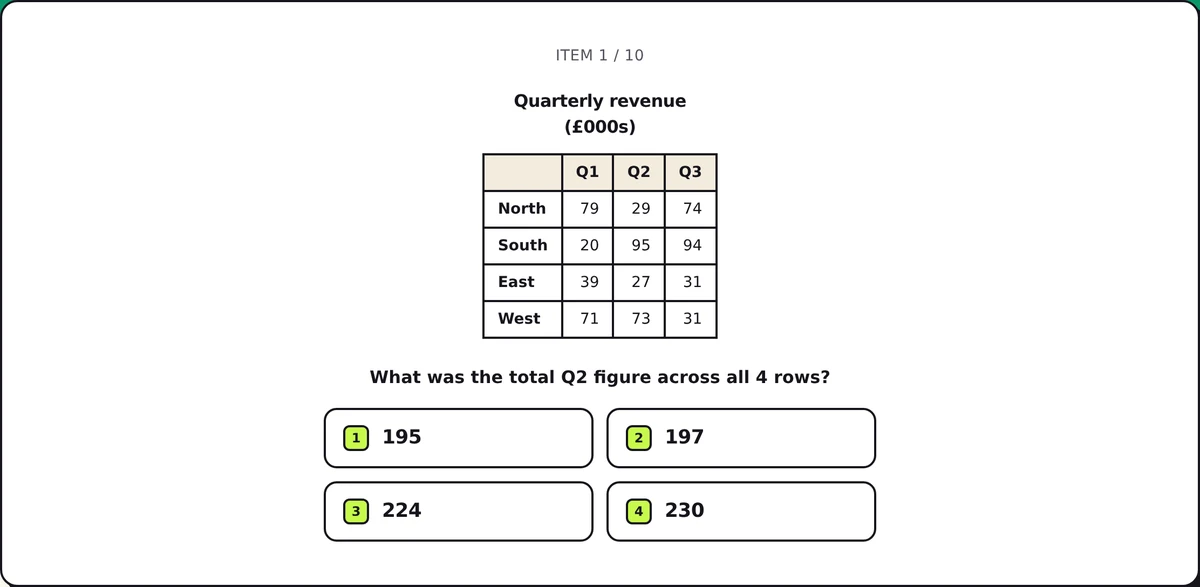
An Excel test for a job is a short, timed skills assessment: you read small spreadsheets and say what a formula returns, which formula gives a result, what happens to a reference when a formula is copied, and what a sort, a filter or a PivotTable would show. Employers send one for admin, finance, analyst, operations and HR roles. The topics repeat across platforms, so you can prepare for all of them in a few evenings. This guide walks through each topic with a worked example on one small table, then gives a short plan. You can try twenty generated questions in fifteen minutes, with every mistake explained, on our free Excel test practice. GamePrep is independent and not affiliated with Microsoft, Indeed, eSkill, TestGorilla, Kenexa or any other test publisher.
Who sends Excel tests, and in what format
Excel assessments come from general skills-testing platforms rather than from Microsoft. Indeed Assessments offers Excel tests that employers can attach to a job and that candidates can choose to show on their profile; eSkill, TestGorilla and Kenexa Prove It (Kenexa is now part of IBM) are other names candidates commonly mention, and recruitment agencies often run their own. Three formats are common:
- Multiple choice on a sheet: a small table and a formula, "what does it return?". This is the format our practice uses.
- Which formula would you use? four formulas, one gives the result described.
- Live spreadsheet: a real grid where you type the formula, sort or build a chart, and the platform checks the cell.
Most are timed, roughly 10 to 40 minutes, and many come in basic and advanced levels.
The example table
Every example below uses this sheet. Row 1 is the header.
| A | B | C | |
|---|---|---|---|
| 1 | Name | Region | Sales |
| 2 | Ava | North | 420 |
| 3 | Ben | South | 310 |
| 4 | Chloe | North | 560 |
| 5 | Dev | East | n/a |
| 6 | Ella | North | 310 |
| 7 | Finn | South |
Basic functions: read the range first
=SUM(C2:C4)returns 1290 (420 + 310 + 560). A test will often use a range that stops short of the last row, so read the range before the function.=AVERAGE(C2:C4)returns 430 (1290 / 3). Taking the sum for the average is the classic distractor.=COUNT(C2:C7)returns 4: COUNT counts only cells that hold numbers, so "n/a" and the blank C7 are skipped.=COUNTA(C2:C7)returns 5: COUNTA counts every non-empty cell, text included.=MAX(C2:C7)returns 560; text and blanks are ignored.=ROUND(2.345*3,1)returns 7 after rounding 7.035 to one decimal place (7.0, shown as 7 in General format).
Conditional functions: COUNTIF, SUMIF, AVERAGEIF
=COUNTIF(B2:B7,"North")returns 3.=COUNTIF(C2:C7,">=310")returns 4: the two 310s count because of the equals sign.">310"would return 2.=SUMIF(B2:B7,"North",C2:C7)returns 1290 (420 + 560 + 310). The criteria range comes first and the range to add last; swap them and you get 0.=AVERAGEIF(B2:B7,"North",C2:C7)returns 430.
Logical functions: IF, nested IF, AND and OR
=IF(C4>=500,"Bonus","None")returns "Bonus". IF returns its second argument when the test is true and its third when false; it never returns TRUE unless you ask it to.=IF(C2>=500,"A",IF(C2>=400,"B","C"))returns "B": the tests are checked in order and the first true one wins.=IF(AND(B3="South",C3>300),"Yes","No")returns "Yes"; both conditions hold.ORwould need only one.
Lookups: VLOOKUP, XLOOKUP, INDEX and MATCH
=VLOOKUP("Chloe",A2:C7,3,FALSE)returns 560. The lookup value must be in the first column of the range, 3 is the column within the range (not the sheet), and FALSE asks for an exact match. Leaving it out asks for an approximate match on sorted data, a common source of wrong answers.=XLOOKUP("Ella",A2:A7,C2:C7,"Not found")returns 310; for a name that is not in the list it returns "Not found" instead of #N/A.=MATCH("Dev",A2:A7,0)returns 4, the position in the range, and=INDEX(B2:B7,4)returns "East". Together,=INDEX(B2:B7,MATCH("Dev",A2:A7,0))looks up to the left, which VLOOKUP cannot.
Copying formulas: relative, absolute and mixed references
This is the most tested topic and the one people guess most. When you copy a formula, every reference without a dollar sign moves by the same number of columns and rows as the formula did.
- D2 holds
=C2*$F$1. Copied to E4 (one column right, two rows down), it becomes=D4*$F$1: C2 shifts, $F$1 is locked. - In a times table, B2 holds
=$A2*B$1. Copied to D5, it becomes=$A5*D$1: the dollar before A locks the column only, the dollar before 1 locks the row only.
Press F4 in Excel to cycle a reference through A1, $A$1, A$1 and $A1.
Text and percentages
=CONCAT(A2," (",B2,")")returns "Ava (North)".&does the same:=A2&" ("&B2&")".=LEFT(B3,1)&"-"&TEXT(C3,"0000")returns "S-0310": TEXT pads the number to four digits.- Percentage change is (new − old) / old. From 400 to 500 is 25%; dividing by the new value (20%) is the trap.
Data tools: sort, filter, PivotTables and charts
- Sorting the table by Sales, smallest to largest, puts Ben in A2: the two 310s tie and keep their original order, Ben before Ella. Whole rows move and the header stays put. In an ascending sort, text such as "n/a" comes after the numbers, and blank cells always go last.
- Filtering Region = North and Sales greater than 310 leaves 2 rows (Ava and Chloe). Filters on two columns combine with AND, and "greater than" excludes 310 itself.
- A PivotTable with Region in Rows and Sum of Sales in Values shows 1290 for North. Count of Sales would show 3.
- Charts: a line chart for a trend over time, a column chart to compare categories, a pie chart for parts of one whole, a scatter chart for whether two measures move together.
A one-week plan
- Day 1: take the Excel test practice cold and note which topics the review flags.
- Days 2 to 4: rebuild the examples above in Excel, Google Sheets or LibreOffice, one topic a day, and change the numbers until you can predict every result before pressing Enter.
- Day 5: drill references: copy formulas with each dollar pattern in every direction until it is automatic.
- Days 6 and 7: take the practice again under time, twice. Each run has new sheets, so you are practising the skill, not memorising answers.
If the same application includes a typing or data entry step, practise that too with the data entry test, and if it includes a numerical reasoning test, try the numerical reasoning practice.
Check how ready you are
After a few practice runs, the Excel and data entry readiness check puts your results for every section of the test in one report: your typical score (the one that matters with a single attempt on the day), the section to fix first, and a day-by-day plan up to your test date.
FAQ
What is on an Excel test for a job? Formula questions on a small sheet (SUM, AVERAGE, COUNT and COUNTA, COUNTIF, SUMIF, IF, VLOOKUP, XLOOKUP, INDEX and MATCH), what references become when a formula is copied, and data tasks such as sorting, filtering, PivotTables and charts.
How do I pass an Excel assessment? Read every range before the function, learn what the dollar signs do, know COUNT versus COUNTA and SUMIF versus COUNTIF, and be able to write an exact-match lookup. Then practise under time.
Is VLOOKUP still tested now that XLOOKUP exists? Yes. Many workplaces still use VLOOKUP, so tests usually include both, and INDEX with MATCH as well.
What is a good score on an Excel test? Each employer sets its own bar. Admin roles usually want the basics solid; analyst and finance roles expect lookups, conditional sums, references and PivotTables without hesitation.
Are GamePrep's questions taken from real Excel tests? No. Every question is original and generated fresh for each run. GamePrep is independent and not affiliated with Microsoft, Indeed, eSkill, TestGorilla, Kenexa or any test publisher.
GamePrep is an independent practice site and is not affiliated with Microsoft, Indeed, eSkill, TestGorilla, IBM Kenexa or any other test publisher. Excel is a trademark of Microsoft. Product names are used only to describe those products.